Transparency note: Artikel ini lanjutan dari 7 Tanda WordPress Anda Sudah Diretas. Klien blog edukasi yang saya recovery 4 Mei 2026, H+1 saya install 2FA sebagai hardening action #1. Detail teknis akurat dengan klien anonymized.
Senin 5 Mei 2026, jam 08:30 WIB. Klien WhatsApp saya:
“Pak, kemarin selesai cleanup. Sekarang saya siap deploy 2FA seperti yang Pak Larh sampaikan. Mulai dari mana?”
Klien ini blog edukasi guru SD/SMP, yang Senin sebelumnya saya recovery dari 7 tanda diretas (admin user backdoor wpadmin2_x9k, 89 file PHP mtime <72 jam, 218 spam post “slot gacor”, .htaccess inject redirect Googlebot). 2 jam forensic + cleanup. Action #1 di hardening 5-step waktu itu adalah: enable 2FA wajib untuk semua admin user. Kemarin saya kasih tahu klien outline. Hari ini kami eksekusi.
Pertanyaan jujur ke diri sendiri yang saya sempat malu jawab di artikel sebelumnya: kenapa saya tidak install 2FA dari hari 1 saat onboarding klien?
Jawaban: backlog hardening, dipikir “blog edukasi traffic low, prioritas rendah”. Terbukti salah saat compromise terjadi. Lesson learned mahal. Sekarang policy LarhTech: setiap site klien baru, 2FA = wajib di week 1 onboarding, bukan optional.
Artikel ini step-by-step setup 2FA WordPress yang saya pakai untuk klien blog edukasi ini (dan 13 site klien lain sejak insiden). Plugin gratis forever, plus 3 skenario edge case anti-lockout yang sering ditinggalkan 90% tutorial 2FA di luar sana.
1. Apa yang Saya Lakukan 5 Mei 2026: H+1 Post-Recovery
Recap kondisi klien per pagi 5 Mei:
- 3 admin user aktif (klien + 2 editor freelance)
- VPS Contabo Singapore 6 vCPU/12 GB, WP 6.6.x, PHP 8.3, MariaDB 10.11
- Backup baru: 4 Mei 2026 21:00 WIB (clean state post-recovery)
- Plugin aktif: Wordfence Free, Rank Math, Yoast (3 plugin essential, sisanya audit + nonaktifkan)
- Password user: semua sudah rotate kemarin
- SALT keys wp-config.php: rotated kemarin
- Status: belum ada 2FA aktif. Itu yang akan kita fix dalam 30 menit ke depan.
Workflow target hari ini:
- 08:30-09:00 WIB → Install Two-Factor plugin + setup TOTP untuk klien (admin user utama)
- 09:00-09:30 WIB → Klien call 2 editor, setup TOTP mereka via shared screen
- 09:30-10:00 WIB → Saya implement force enforce per role + app password + recovery test
- Total: 1.5 jam termasuk training 2 editor
2. Counter-Narrative: 3 Weakness 2FA Deployment yang Saya Sering Lihat
Sebelum install plugin, saya jelasin ke klien kenapa “install plugin → centang Enable → done” tidak cukup.
60% deployment 2FA WordPress yang saya audit di klien-klien LarhTech selama 2024-2026 punya minimal 1 dari 3 weakness:
| # | Weakness | Konsekuensi |
|---|---|---|
| 1 | Tidak ada backup code generation | Lost phone = tiket support 3 hari, klien marah karena tidak bisa akses dashboard |
| 2 | Tidak ada app-specific password untuk REST API/XMLRPC | Attacker bypass 2FA via wp-json/wp/v2/users endpoint atau xmlrpc.php (kalau user/pass valid, 2FA tidak dipanggil) |
| 3 | Tidak ada lost device recovery protocol via SQL | Admin terkunci permanent, butuh DevOps SSH access ke VPS untuk reset, kadang admin = klien yang tidak punya VPS access |
Plugin install bukan finish line. 90% setup 2FA gagal di 3 weakness itu. Hari ini kita cover ke-3-nya.
💡 Pro tip #1: Saat audit klien yang sudah pakai 2FA, query ini reveal status setup:
SELECT u.user_login,

MAX(CASE WHEN um.meta_key = '_two_factor_enabled_providers' THEN um.meta_value END) AS providers,

MAX(CASE WHEN um.meta_key = '_two_factor_backup_codes' THEN 'HAS_BACKUP' END) AS backup

FROM wp_users u

LEFT JOIN wp_usermeta um ON um.user_id = u.ID

WHERE um.meta_key LIKE '_two_factor%'

GROUP BY u.user_login;
Output
providers IS NULL= user belum aktivasi 2FA.backup IS NULL= aktivasi tapi tanpa backup code (weakness #1).
3. Plugin Pilihan: Two-Factor by George Stephanis
Klien tanya: “kenapa bukan Wordfence yang sudah saya install?” Jawaban via tabel comparison:
| Plugin | Lisensi | TOTP | Backup Code | FIDO U2F | Update aktif | |
|---|---|---|---|---|---|---|
| Two-Factor (Stephanis) | GPL gratis | ✓ | ✓ | ✓ | ✓ | ✓ (core contributor) |
| WP 2FA (Melapress) | Freemium | ✓ | ✓ free tier | Pro only | ✓ | ✓ |
| miniOrange 2FA | Freemium | ✓ free | Pro only | RussPro onlyia | Pro only | ✓ |
| Wordfence 2FA | Bundled Wordfence | ✓ | ✓ | ✗ | ✓ | ✓ |
Pilihan saya konsisten sejak 2022: Two-Factor by George Stephanis. Argumen:
- George Stephanis = WordPress core committer sejak 2013, plugin track record 10+ tahun
- 100% GPL gratis, no nag UI upgrade Pro, no telemetry pop-up
- Support 4 provider: TOTP, FIDO U2F (security key Yubikey), email, backup code
- Compatible WP 5.6+ Application Password built-in (Section 7)
- 30.000+ active install, 4.5 star rating
Install via wp-cli (saya prefer over dashboard untuk audit trail):
ssh klien@vps-contabo
cd /var/www/blog-edukasi.com/htdocs
wp plugin install two-factor --activate
wp plugin list --status=active --fields=name,version
Output:
+------------+---------+
| name       | version |
+------------+---------+
| two-factor | 0.13.0  |
| ...        | ...     |
+------------+---------+
Plugin aktif. Lanjut configure di dashboard.
4. Setup TOTP: App Comparison + Scan QR
4 app TOTP yang saya rekomendasikan ke klien (urutan saran):
| App | Pro | Con | Verdict |
|---|---|---|---|
| Bitwarden Authenticator | Gratis, open source, cross-platform, backup ke vault encrypted, multi-device sync | Butuh sign-up Bitwarden (10 detik) | Top pick |
| 1Password | UI clean, backup auto, autofill Safari/Firefox/iOS, family share | $36/year (kalau belum subscribe) | Top pick paid |
| Authy (by Twilio) | Cloud backup, multi-device sync | Acquired Twilio 2024, ada privacy concern + force phone number registration | Skip kalau bisa |
| Google Authenticator | Default familiar, di-install di banyak phone | Lost phone = lost code (no cloud backup default — baru ada di v6+ via Google account) | Backup option |
Klien blog edukasi pilih Bitwarden Authenticator karena sudah pakai Bitwarden untuk password manager. Konsisten 1 vault untuk semua secret.
Step-by-step setup:
- Login WordPress sebagai admin, buka Users → Profile (URL:
/wp-admin/profile.php) - Scroll ke section Two-Factor Options
- Centang Time Based One-Time Password (TOTP)
- Klik View Options di TOTP row
- WordPress generate QR code + secret key text-based
PENTING: Saya selalu copy juga secret key text-based (bukan hanya QR code), simpan di password manager untuk:
- Migrasi app TOTP (Google Authenticator → Bitwarden Authenticator, dll)
- Backup secondary (kalau Bitwarden vault corrupt, kita masih punya secret)
- Buka Bitwarden Authenticator di phone, klik + (add new), scan QR code
- App generate 6-digit code yang refresh tiap 30 detik
- Input 6-digit code di field Authentication Code di WordPress profile
- Klik Submit, verify
- Klik Update Profile untuk save
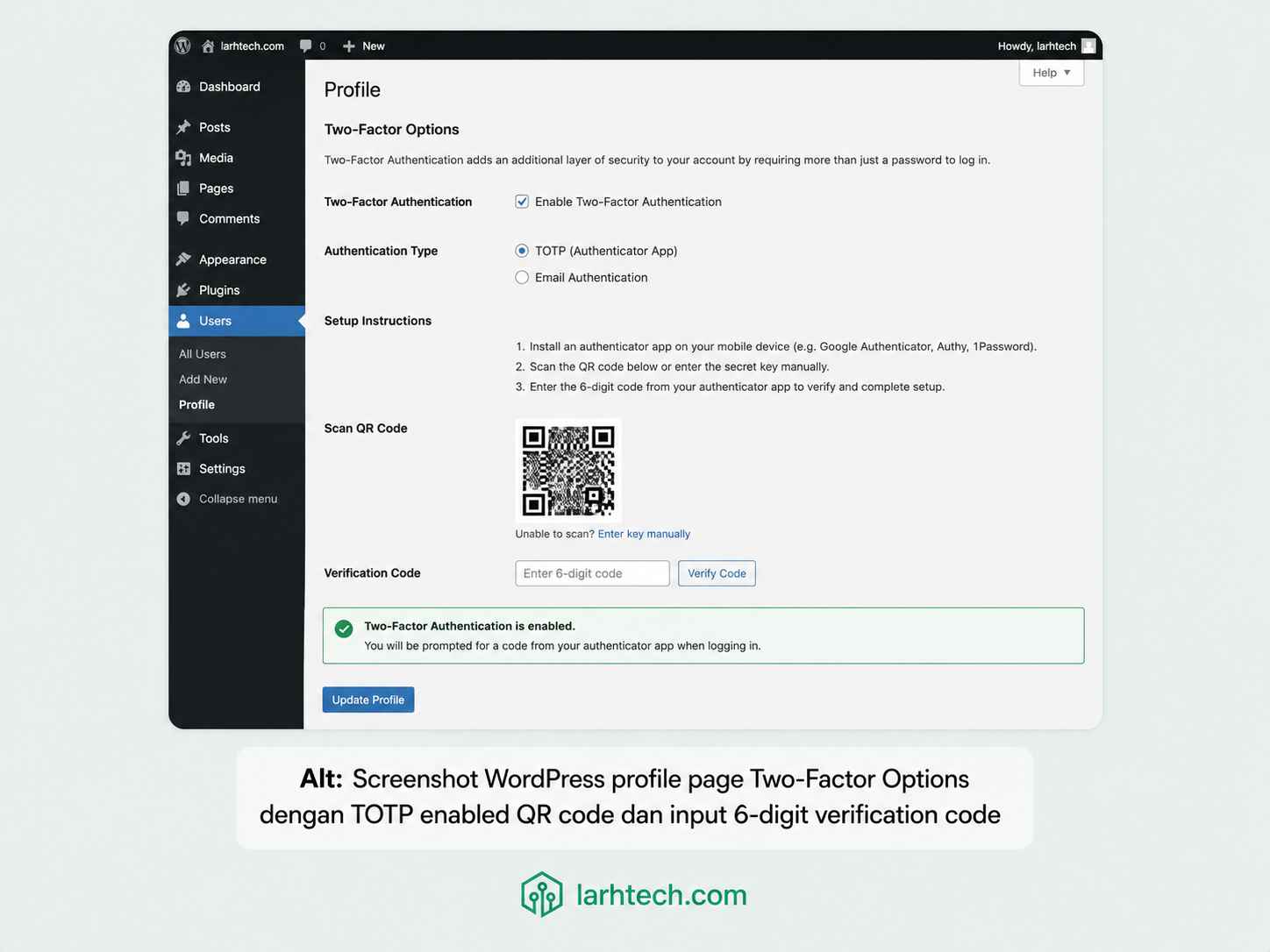
Setelah verify, profile akan tampilkan TOTP enabled, last used [waktu]. Login berikutnya akan minta 6-digit code setelah username/password.
⚠️ Catatan #1: Klock skew (perbedaan jam server vs phone) bisa bikin TOTP gagal verify. Pastikan VPS pakai NTP sync (
sudo timedatectl status → NTP synchronized: yes). Klien blog edukasi sempat hit issue ini — VPS time drift 47 detik karena NTP tidak aktif. Fix:sudo apt install -y systemd-timesyncd && sudo systemctl enable --now systemd-timesyncd.
5. Backup Code Generation: Disaster Recovery
Sekarang weakness #1 dari Section 2: backup code.
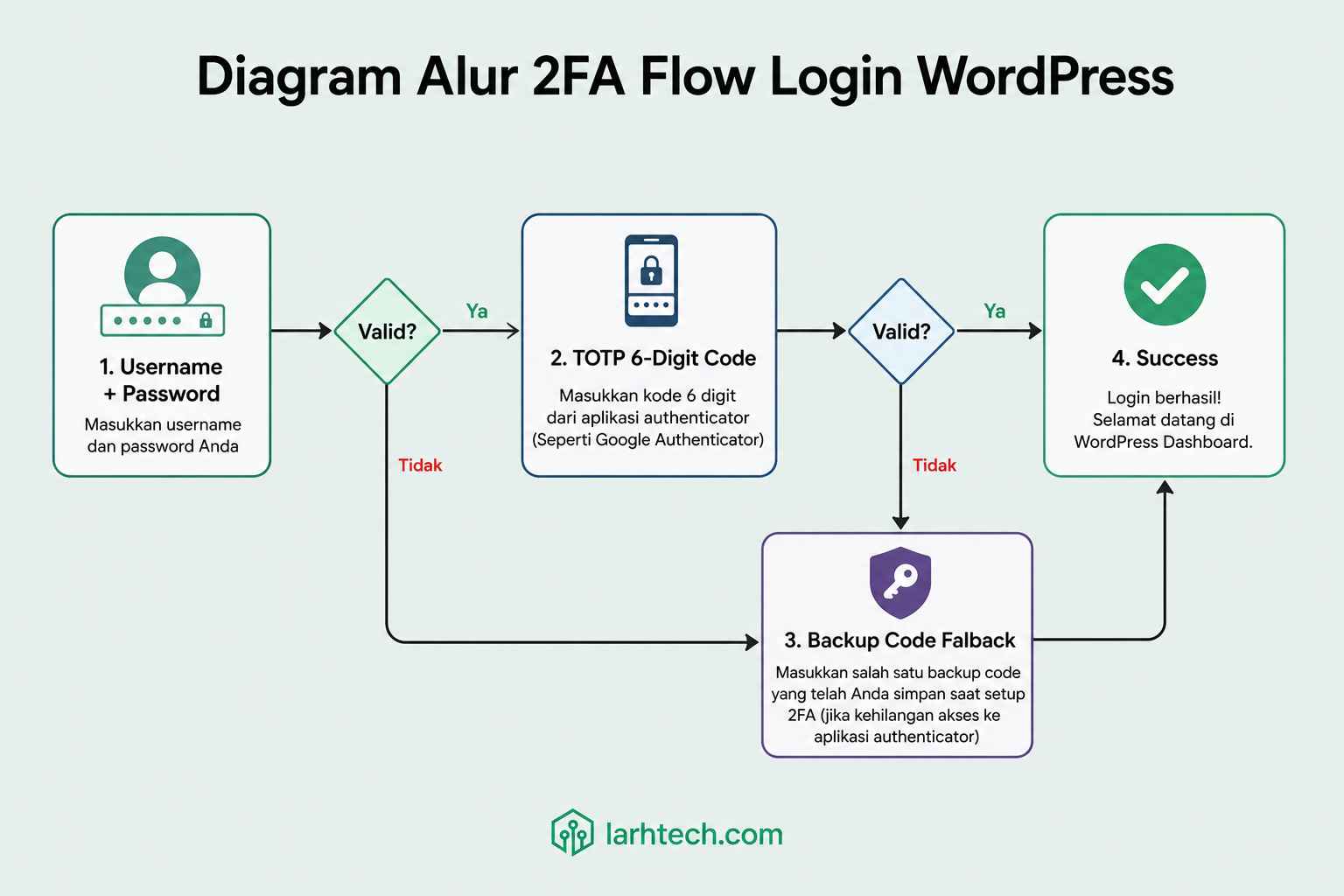
Di Two-Factor settings, sebelah TOTP enabled row, ada Generate Verification Codes button. Klik → plugin generate 10 single-use code (format: XXXX XXXX, 8 digit hex).
Backup Codes (10 generated):
e3f7 a1b2    9c4d 6e8f    2a5b 7c9d
1e3f 5a7b    8d2c 4e6f    f1a3 b5c7
3e5d 7f9a    b2c4 d6e8    a1b3 c5d7
e7f9 1a3b
Best practice yang saya tegakkan ke klien:
- Jangan screenshot di phone gallery, gallery sering sync ke cloud (Google Photos / iCloud) yang punya security model beda
- Simpan 5 code di password manager (Bitwarden secure note attached ke item login WordPress)
- Print 5 code fisik, simpan di brankas/laci yang tidak dishare. Offline backup kalau Bitwarden inaccessible
- Regenerate setiap 6 bulan (rotation discipline), old code invalidated otomatis
Setiap code single-use: dipakai sekali → otomatis crossed out di database. Setelah 10/10 dipakai, generate ulang.
-- Lihat backup code status (admin only, jangan share output)
SELECT user_id, meta_value
FROM wp_usermeta
WHERE meta_key = '_two_factor_backup_codes';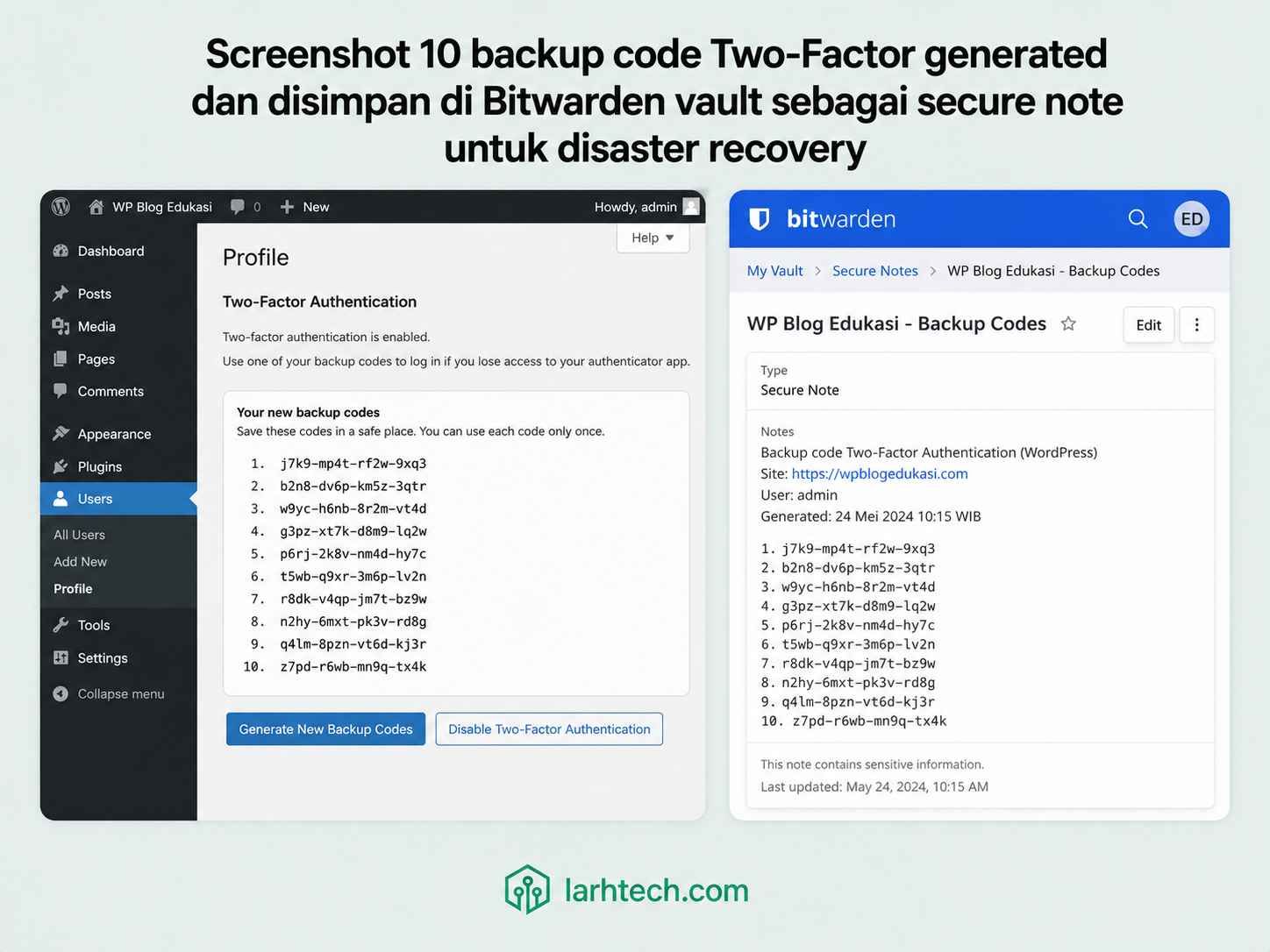
💡 Pro tip #2: Reminder otomatis rotate backup code via cron + email:
# /etc/cron.d/wp-2fa-rotation-reminder

0 9 1 1,7 * larhtechbro echo "Reminder: rotate 2FA backup code WP klien" | mail -s "2FA Rotation Reminder" [email protected]
Trigger 1 Januari + 1 Juli setiap tahun. 30 detik setup, prevent klien lupa rotate.
6. Force Enforce 2FA per Role via functions.php
Default Two-Factor plugin = opsional per user. Klien butuh hardening: wajib untuk role administrator + editor.
Saya pakai 2 pendekatan tergantung kompleksitas:
Approach 1: Snippet di mu-plugins (preferred):
File: /wp-content/mu-plugins/larhtech-force-2fa.php (mu-plugins selalu aktif walau theme diganti).
<?php
/**
 * Plugin Name: LarhTech Force 2FA per Role
 * Description: Force 2FA wajib untuk administrator dan editor role
 * Author: LarhTech Bro
 * Version: 1.0
 */

if ( ! defined( 'ABSPATH' ) ) exit;

// Hook setelah Two-Factor plugin loaded
add_action( 'wp_loaded', function() {
    if ( ! class_exists( 'Two_Factor_Core' ) ) {
        return; // Plugin Two-Factor belum aktif
    }

    // Get current user
    $user = wp_get_current_user();
    if ( ! $user || ! $user->ID ) {
        return;
    }

    // Role yang wajib 2FA
    $required_roles = array( 'administrator', 'editor' );

    if ( array_intersect( $required_roles, (array) $user->roles ) ) {
        // Cek apakah user sudah enable 2FA provider
        $providers = get_user_meta( $user->ID, '_two_factor_enabled_providers', true );

        if ( empty( $providers ) ) {
            // Redirect ke profile page dengan notice
            if ( ! defined( 'DOING_AJAX' ) && ! is_admin_bar_showing() === false ) {
                add_action( 'admin_notices', function() {
                    echo '<div class="notice notice-error"><p><strong>WAJIB:</strong> Aktivasi 2FA di <a href="' . admin_url( 'profile.php#two-factor-options' ) . '">profile</a> Anda dalam 24 jam. Setelah deadline, akses dashboard di-block.</p></div>';
                });
            }
        }
    }
}, 20 );
Approach 2: Filter level enforcement (lebih agresif):
add_filter( 'two_factor_user_api_login_enable', function( $enabled, $user_id ) {
    $user = get_userdata( $user_id );
    if ( ! $user ) return $enabled;

    $required_roles = array( 'administrator', 'editor' );
    if ( array_intersect( $required_roles, (array) $user->roles ) ) {
        return true; // Force enable, no opt-out
    }
    return $enabled;
}, 10, 2 );
Untuk klien blog edukasi, saya pakai Approach 1 (notice + soft enforcement), kasih grace period 24 jam untuk 2 editor adjust. Setelah deadline, switch ke Approach 2 (hard enforce).
⚠️ Catatan #2: Test enforcement di staging environment dulu, bukan production. Saya pernah hit issue klien yang lupa scan QR sebelum logout, akhirnya self-lockout setelah deadline 24 jam. Recovery 30 menit via SQL (Section 8).
7. App-Specific Password: Cegah REST API/XMLRPC Bypass
Weakness #2 dari Section 2. Ini yang paling sering ditinggalkan tutorial 2FA di luar sana.
Problem: 2FA hanya guard /wp-admin/ login. REST API (/wp-json/) dan XMLRPC (/xmlrpc.php) tetap accessible kalau username/password basic auth valid, 2FA second factor tidak dipanggil untuk endpoint API.
Attack vector real yang sudah saya lihat:
curl -u "admin:password_lemah" https://klien-site.com/wp-json/wp/v2/users
# → return list semua user dengan email exposed, walaupun WordPress dashboard sudah 2FA
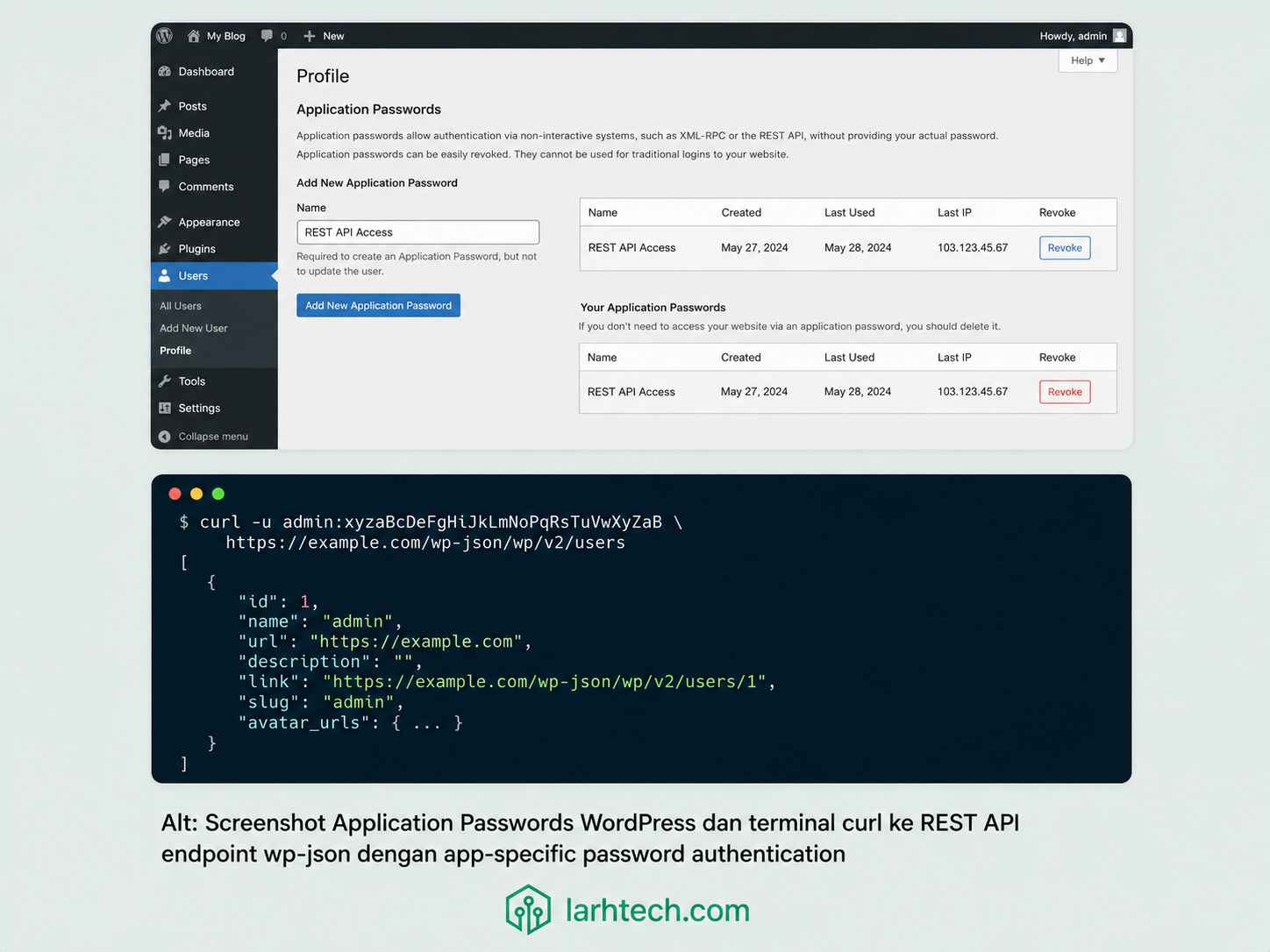
Solusi WordPress core (sejak 5.6): Application Password. Token random 24-character yang generate via dashboard, dipakai untuk basic auth REST API/XMLRPC. Token bisa di-revoke individual tanpa rotate password user.
Setup:
- Profile page → scroll ke Application Passwords section
- Field “New Application Password Name” → masukkan deskripsi (contoh:
Postman dev local, CI deploy script) - Klik Add New Application Password
- WordPress generate token (format:
XXXX XXXX XXXX XXXX XXXX XXXX) - PENTING: copy token sekarang, tidak akan ditampilkan lagi setelah refresh
Test access REST API dengan app password (bukan password utama):
# Test list users (admin only endpoint)
curl -u "admin:XXXX XXXX XXXX XXXX XXXX XXXX" \
     https://klien-site.com/wp-json/wp/v2/users?context=edit

# Test create post via REST API
curl -u "admin:XXXX XXXX XXXX XXXX XXXX XXXX" \
     -X POST \
     -H "Content-Type: application/json" \
     -d '{"title":"Test","status":"draft"}' \
     https://klien-site.com/wp-json/wp/v2/posts
Policy rotation yang saya enforce ke klien:
- App password = 1 token per use case (1 Postman, 1 CI, 1 mobile app, dll). Jangan share token antar use case.
- Rotate setiap 90 hari (revoke + generate baru)
- IP whitelist via wp-config untuk service account:
// wp-config.php — restrict REST API ke IP CI/CD service
define( 'WP_REST_API_IP_WHITELIST', '203.0.113.45,198.51.100.22' );

add_filter( 'rest_authentication_errors', function( $result ) {
    if ( true === $result || is_wp_error( $result ) ) {
        return $result;
    }

    if ( ! defined( 'WP_REST_API_IP_WHITELIST' ) ) {
        return $result;
    }

    $whitelist = array_map( 'trim', explode( ',', WP_REST_API_IP_WHITELIST ) );
    $client_ip = $_SERVER['HTTP_X_FORWARDED_FOR'] ?? $_SERVER['REMOTE_ADDR'];

    if ( ! in_array( $client_ip, $whitelist, true ) ) {
        return new WP_Error( 'rest_forbidden_ip', 'IP tidak whitelist', array( 'status' => 403 ) );
    }
    return $result;
});
Untuk klien blog edukasi: 0 app password initial (tidak butuh REST API client). Kalau klien minta integrasi mobile/CI nanti, generate app password + IP whitelist per kebutuhan.
💡 Pro tip #3: Untuk site klien yang tidak butuh REST API public (kasus 70% klien LarhTech: blog statik, marketing site, brochure site), block REST API endpoint untuk non-authenticated user:
add_filter( 'rest_authentication_errors', function( $result ) {

if ( ! is_user_logged_in() ) {

return new WP_Error( 'rest_not_logged_in', 'API auth required', array( 'status' => 401 ) );

}

return $result;

});
Ini cegah enumeration
/wp-json/wp/v2/usersyang sering jadi reconnaissance attacker.
8. Lost Device Recovery Protocol: 3-Step Fallback
Weakness #3 dari Section 2. Skenario: klien lost phone (rusak, lupa di taksi, ganti device).
Step 1: Backup Code (30 detik, paling cepat):
Di login screen, ada link Use a backup code. Klik → input 1 dari 10 code yang saved di Bitwarden / print fisik (Section 5). Login success → segera generate ulang 10 code baru (yang ke-1 dipakai = invalidated, 9 sisa masih valid tapi lebih baik regenerate).
Step 2: Email Fallback (5 menit, kalau backup code juga lost):
Two-Factor support Email Provider sebagai fallback. Enable di profile page:
- Profile → Two-Factor Options → centang Email
- Verify email field di WP user profile akurat
- Login screen → klik link Send code via email
- Inbox email → ambil 6-digit code → input ke login
Catatan keamanan: Email fallback only safe kalau email account sendiri sudah 2FA. Kalau email klien Gmail tanpa 2FA, attacker yang compromise email = bypass WP 2FA. Saya selalu push klien aktifkan 2FA di email dulu (Google/Microsoft account) sebelum enable Two-Factor email fallback.
Step 3: SQL Reset (10 menit, last resort):
Kalau backup code lost + email inaccessible, SSH ke VPS dan reset via SQL:
ssh klien@vps-contabo
mysql -u root -p
USE wp_blog_edukasi;
-- 1. Check user yang akan di-reset
SELECT u.ID, u.user_login
FROM wp_users u
WHERE u.user_login = 'klien_admin';
-- 2. Delete semua 2FA meta untuk user tersebut (replace ID = 1)
DELETE FROM wp_usermeta
WHERE user_id = 1
AND meta_key IN (
'_two_factor_provider',
'_two_factor_enabled_providers',
'_two_factor_totp_key',
'_two_factor_backup_codes'
);
-- 3. Verify
SELECT meta_key
FROM wp_usermeta
WHERE user_id = 1 AND meta_key LIKE '_two_factor%';
-- Output: 0 rowsUser login berikutnya = tanpa 2FA (kembali ke state default). WAJIB segera setup ulang 2FA setelah login success (jangan biarkan tanpa 2FA 1 hari pun).
Konteks penting untuk klien non-teknikal: kalau klien Anda yang admin saja yang punya VPS access = recovery harus via team teknis (Anda atau DevOps Anda). Set ekspektasi sejak awal: “kalau lost device tanpa backup code + email, recovery 30 menit dan butuh teknis akses VPS”.
Untuk klien blog edukasi, saya kasih klien card fisik dengan 3 langkah recovery:
LOST PHONE? GAGAL LOGIN?
1. Cek backup code di Bitwarden vault → input di login
2. Klik "Send code via email" → check inbox
3. WhatsApp Pak Larh: +62-xxx (last resort, recovery 30 menit)
9. 5 Hardening Companion (Beyond 2FA)
2FA tidak berdiri sendiri. Saya bundle dengan 5 hardening companion di hari yang sama:
1. Limit login attempt via fail2ban WP filter:
# /etc/fail2ban/filter.d/wordpress.conf
[Definition]
failregex = ^<HOST> .* "POST /wp-login.php.*HTTP.*" 200
            ^<HOST> .* "POST /xmlrpc.php.*HTTP.*" 200
ignoreregex =

# /etc/fail2ban/jail.local
[wordpress]
enabled = true
port = http,https
filter = wordpress
logpath = /var/log/nginx/access.log
maxretry = 5
findtime = 600
bantime = 86400
5 login fail dalam 10 menit = ban IP 24 jam.
2. Disable XML-RPC endpoint:
Kalau klien tidak pakai WordPress mobile app atau Jetpack, blok di nginx:
# /etc/nginx/sites-available/blog-edukasi.com
location = /xmlrpc.php {
    deny all;
    access_log off;
    log_not_found off;
    return 444;
}
sudo nginx -t && sudo systemctl reload nginx3. Rename wp-login.php via WPS Hide Login (plugin gratis Melapress):
wp plugin install wps-hide-login --activateSettings → WPS Hide Login → URL custom (contoh: /secret-login-x9k2/). Old URL /wp-login.php return 404. Bot scanner yang target wp-login.php langsung give up.
4. Strong password policy via filter:
// /wp-content/mu-plugins/larhtech-password-policy.php
add_filter( 'check_password', function( $check, $password, $hash, $user_id ) {
    if ( ! is_user_logged_in() || ! current_user_can( 'edit_user', $user_id ) ) {
        return $check;
    }

    // Minimum 14 char + uppercase + lowercase + digit + symbol
    $valid = strlen( $password ) >= 14
          && preg_match( '/[A-Z]/', $password )
          && preg_match( '/[a-z]/', $password )
          && preg_match( '/[0-9]/', $password )
          && preg_match( '/[\W_]/', $password );

    if ( ! $valid && wp_get_current_user()->ID === $user_id ) {
        wp_die( 'Password minimal 14 karakter, mix uppercase/lowercase/digit/symbol.' );
    }
    return $check;
}, 10, 4 );
5. Force HTTPS session cookie:
// wp-config.php — di atas baris "That's all, stop editing"
define( 'FORCE_SSL_ADMIN', true );
define( 'COOKIE_DOMAIN', '.blog-edukasi.com' );
Session cookie hanya transmit via HTTPS. MITM attack tidak bisa steal cookie via HTTP downgrade. 5 hardening + 2FA = 6 layer defense. Attacker butuh compromise multiple layer untuk lewatin.
10. Testing & Validasi Setup
Setelah setup, wajib test 5 skenario sebelum claim “deployed”:
# 1. Test login dari incognito browser
# (verify 2FA prompt muncul setelah username/password)

# 2. Test backup code (single-use)
# Login pakai backup code → logout → login lagi pakai code yang sama → harus FAIL

# 3. Test app password via curl
curl -u "klien_admin:XXXX XXXX XXXX XXXX XXXX XXXX" \
     https://blog-edukasi.com/wp-json/wp/v2/users?context=edit
# Expect: 200 OK dengan list user

# 4. Test enforce role (logout, login user non-2FA)
# Login as editor yang belum aktif 2FA → harus muncul notice merah

# 5. Test SQL reset di STAGING (BUKAN production!)
# Reset 2FA meta untuk user test → verify login next time tanpa 2FA
Klien blog edukasi: semua 5 test pass dalam 20 menit. Sesi 2FA training dengan 2 editor selesai 30 menit. Total deployment: 1 jam 20 menit (di bawah estimate 1.5 jam).
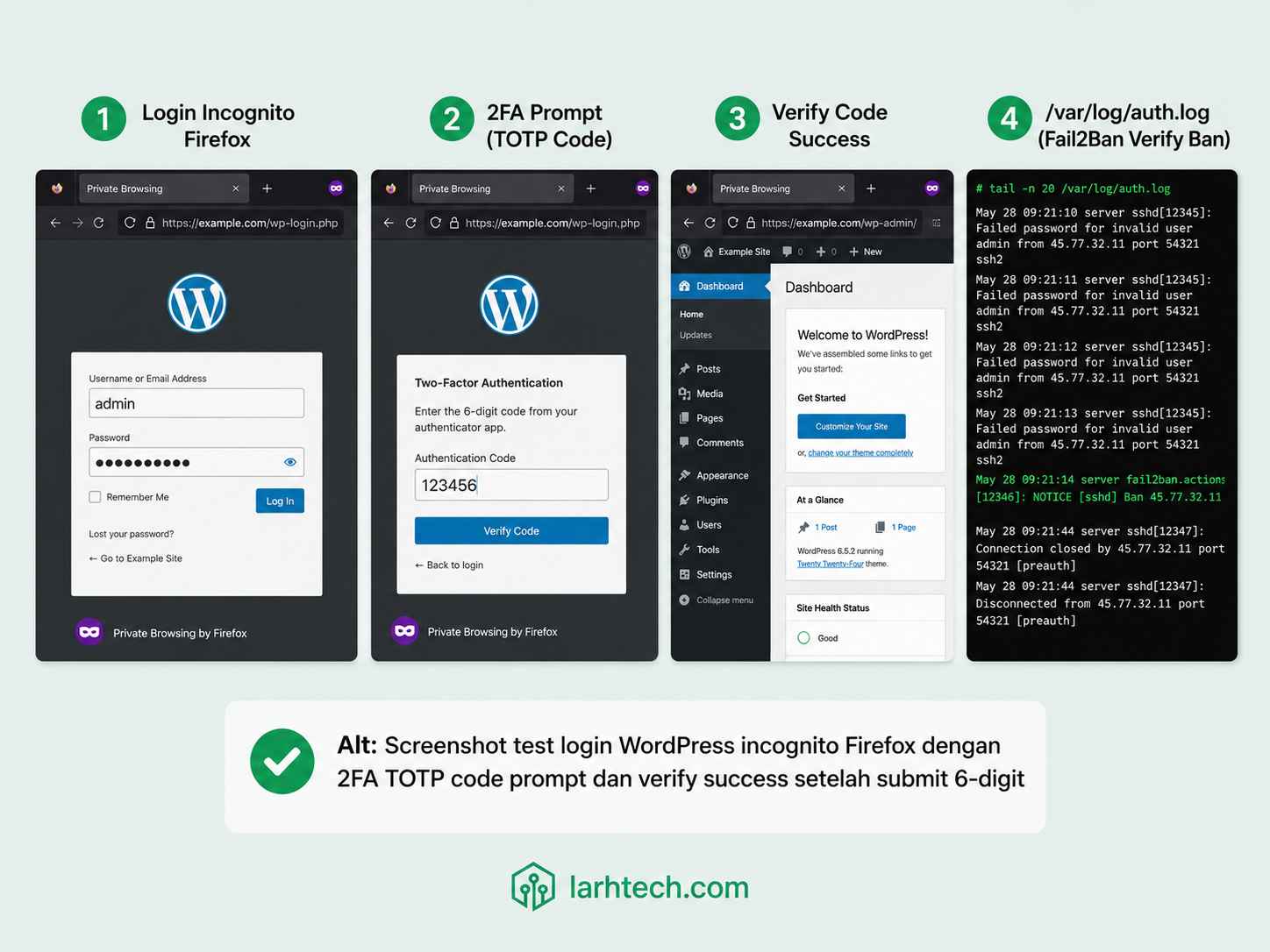
⚠️ Catatan #3: Setelah deployment, monitor 7 hari ketat:
Daily check error.log Two-Factor:
tail /var/log/php-fpm/error.log | grep "Two_Factor"
Daily check fail2ban ban:sudo fail2ban-client status wordpress
Daily check user feedback (klien call Anda kalau ada issue login)Setelah 7 hari smooth = transition ke monitoring weekly.
11. FAQ
Plugin Two-Factor compatible dengan WooCommerce login?
Ya. WooCommerce checkout login menggunakan WordPress core auth (wp_signon) yang otomatis trigger Two-Factor flow. Customer login WooCommerce front-end juga akan diminta 2FA kalau enabled untuk role customer. Untuk WooCommerce store dengan banyak customer non-teknikal, saya tidak enforce 2FA di role customer (cuma admin + shop_manager), UX trade-off.
2FA bisa di-bypass via wp-cli (sysadmin SSH access)?
Ya, wp-cli bypass 2FA karena execute as system user dengan elevated capability. Itu kenapa SSH access ke VPS = privileged credential yang harus dijaga ketat (key-based auth only, no password, fail2ban SSH, 2FA SSH via Google Authenticator PAM module, saya bahas di artikel future hardening SSH).
Saya pakai Wordfence, perlu install Two-Factor terpisah?
Wordfence Free punya 2FA built-in (sejak 2018) yang cukup decent — TOTP + 1 backup code, tidak ada FIDO U2F. Kalau Anda sudah comfortable dengan Wordfence dan tidak butuh security key support, Wordfence 2FA cukup. Saya prefer Two-Factor karena lebih fleksibel + tidak vendor-lock-in (Wordfence Free → Premium upsell aggresif).
Klien tidak teknikal, susah pakai TOTP app. Solusi?
3 pendekatan:
1. Email fallback only (Section 8 Step 2) — lebih familiar, walaupun lebih lemah dari TOTP
2. Setup TOTP via shared screen call (saya pakai pendekatan ini ke klien blog edukasi — Zoom screen share, 15 menit per user)
3. Magic Link plugin (Passwordless WordPress) — bukan 2FA murni tapi UX lebih simpel
Saran: tetap push TOTP — sekali set up, klien tidak akan banyak ngeluh setelah 1 minggu adaptasi.
Email fallback 2FA aman? Bagaimana kalau email klien di-hack?
Email fallback aman kalau dan hanya kalau email account klien sudah 2FA. Saya selalu push klien aktifkan 2FA di Gmail/Microsoft account dulu sebelum enable email fallback WP. Tanpa itu, email fallback = security theater (attacker compromise email = WP juga compromised).
Berapa sering rotate TOTP secret key?
TOTP secret key tidak perlu rotate periodic kecuali ada indikator compromise (lost phone tanpa wipe, suspect device tapped, dll). Backup code rotate setiap 6 bulan. App password rotate setiap 90 hari. SALT keys WP rotate setiap 12 bulan atau setelah security incident.
12. Penutup
2FA bukan checkbox install plugin. 90% deployment yang saya audit gagal di 3 weakness: tidak ada backup code, tidak ada app password untuk REST API, tidak ada lost device recovery protocol. Hari ini kita cover semua 3.
Workflow yang saya pakai untuk klien blog edukasi (dan 13 site klien lain post-insiden):
- Install Two-Factor plugin (gratis forever, official WP)
- Setup TOTP dengan Bitwarden Authenticator + simpan secret key text-based
- Generate 10 backup code + simpan di password manager + print fisik
- Force enforce per role via mu-plugin (administrator + editor wajib)
- App-specific password untuk REST API client + IP whitelist
- 3-step lost device recovery documented (backup code → email → SQL reset)
- 5 hardening companion: fail2ban WP, disable XML-RPC, rename wp-login, password policy, force HTTPS cookie
- Test 5 skenario sebelum claim deployed
- Monitor 7 hari ketat post-deployment
Total setup: 1.5 jam untuk site dengan 3 user, plus 30 menit training klien non-teknikal. Worth investment untuk avoid recovery 2 jam + reputational damage dari breach.
Untuk deep-dive topik terkait:
- 7 Tanda WordPress Anda Sudah Diretas: Forensic Manual 2 Jam Cleanup — kontex why 2FA wajib
- Setup VPS Ubuntu 24.04 LTS Production-Ready dalam 2 Jam — baseline VPS sebelum WordPress hardening
- Audit Plugin WordPress: 5 Plugin yang Saya Banned — companion hardening (filter plugin compromise vector)
- Setup Anti-DDoS Cloudflare + Nginx + Fail2ban — network layer defense